A Chromebook enrolled by a school or company is managed from the Google Admin console, which can lock down apps, extensions and settings. AnyProxy needs none of those: it is a website that runs in a Chrome tab. But the admin also controls which websites load, so the honest answer for managed Chromebooks is “it depends on your admin”.
What we have tested. We have not tested on a school- or work-enrolled Chromebook, because we do not have one to test fairly. The pages themselves behave the same in any Chrome tab, so our desktop Chrome tests apply to what you see once a page loads. What an admin can control comes from Google’s own documentation, linked below.
What a managed Chromebook admin can control
Google documents that admins can block and allow URLs on managed Chrome browsers and ChromeOS devices, and restrict apps and extensions. In practice that means an admin can control:
- Play Store apps and Chrome extensions — often limited to an approved list, so no VPN app.
- Which websites load — specific sites, or everything except an allowlist.
- Guest mode and other sign-in options — sometimes turned off.
That gives three realistic cases:
- Installs locked, browsing open. AnyProxy works, because it installs nothing.
- anyproxy.site blocked, or only allowlisted sites permitted. The page will not open, and nothing on the device can change that.
- Traffic goes through a school or work filter. The organisation can see that you visited anyproxy.site, and with HTTPS inspection possibly more.
Whatever the technology allows, the acceptable-use policy of your school or employer applies to you, and many forbid proxies by name.
How to open a site — the short version
- Open Chrome.
- Go to anyproxy.site.
- Type the site’s address, pick a region and press Open. The site loads on its home page in the same tab. A pasted deep link also opens the home page, by design; navigate from there.
Compare that with a VPN, which needs an app install and a VPN permission — both things an admin can block.
Regions
The free regions are Singapore, Frankfurt and Virginia. Pro ($4.99 a month or $39 a year) adds Tokyo and Los Angeles and removes ads; it does not raise video quality or speed up the free regions. The region menu on anyproxy.site pings each region from your browser and shows milliseconds, so pick the lowest.
Distance matters. From India on 15 October 2026, a Wikipedia page took a median 1.4 s through Singapore, 2.4 s through Frankfurt and 3.7 s through Virginia, against 1.2 s direct.
What sites look like through the proxy
Once a page loads, it is the real site, relayed by the proxy. AnyProxy adds only a small round button in the corner.
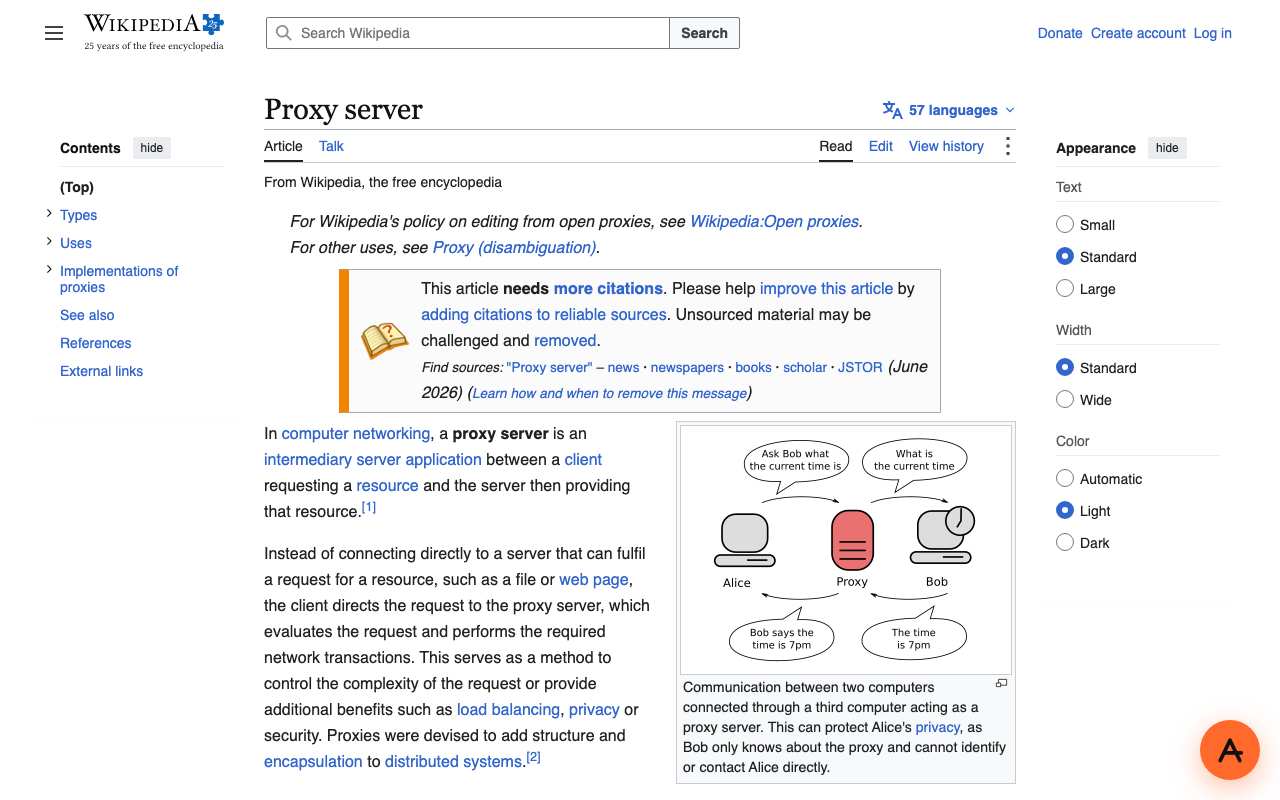
Wikipedia through AnyProxy Singapore in desktop Chrome, 15 October 2026.
A few differences from opening the site directly:
- The address bar shows an AnyProxy server, such as
sg.anyproxy.site/_o/…, followed by the site’s address in encoded form. It stays in your history. - Some sites behave differently. On 15 October 2026 regular YouTube videos played and ChatGPT loaded through Virginia, but YouTube Shorts stayed black, Instagram sent logged-out visitors to its login page, and Reddit refused all three regions.
- Signing in makes the site see a login from the proxy’s country, and the proxy handles what you type. Avoid it for school, work and other important accounts; see how to log in through a proxy.
- Paid streaming such as Netflix or Disney+ needs an account and the right region licence; we have not tested it.
When anyproxy.site is blocked on your Chromebook
If your organisation’s block page appears instead of AnyProxy, the admin has blocked it. There is nothing on a managed Chromebook you can change, and trying other routes may break your acceptable-use policy. If you need a specific site for school or work, ask the admin to allow it.
On a personal Chromebook that is not blocking anything, see fix proxy not loading for other causes.
Also useful on your Chromebook
- Unblock YouTube on managed networks — with our YouTube test results.
- Log in through a proxy — what the proxy can see before you sign in.
- Fix proxy not loading — troubleshooting when a page will not open.